
SparkReceipt supports multiple tax systems and automatically recognizes and categorizes common sales taxes—including GST and PST used in Canada.
You can configure your tax settings and add commonly used tax rates in both the Desktop Browser Application and the Mobile App , making receipt scanning and manual entry more accurate and convenient.
How to Set up Canadian Tax system and automate GST & PST Detection?
When you upload or scan a receipt, SparkReceipt automatically attempts to:
-
Detect the total tax amount
-
Split it into GST and PST where applicable
-
Assign each tax to the correct category
In most cases, no manual action is required.
Correcting a receipt's total keeps GST and PST at their rates
If the scanned total is wrong, or you want the receipt to read the amount your card was charged, type the new total on the expense. SparkReceipt recomputes GST and PST from the rates on the receipt (5 % GST and 9.975 % QST in Québec, for example) so the net and both taxes match the new total to the cent, instead of keeping the old tax amounts. A line whose GST or PST rate is 0 % stays at 0.00. A tax with no stated rate keeps its amount, and so does a tax whose amount has drifted from its rate. The rate row under the tax amount (labelled Effective tax rate in the web app) shows the stated rates, and offers Recalculate at those rates if the amounts have drifted from them, for instance after a tax amount was typed by hand.
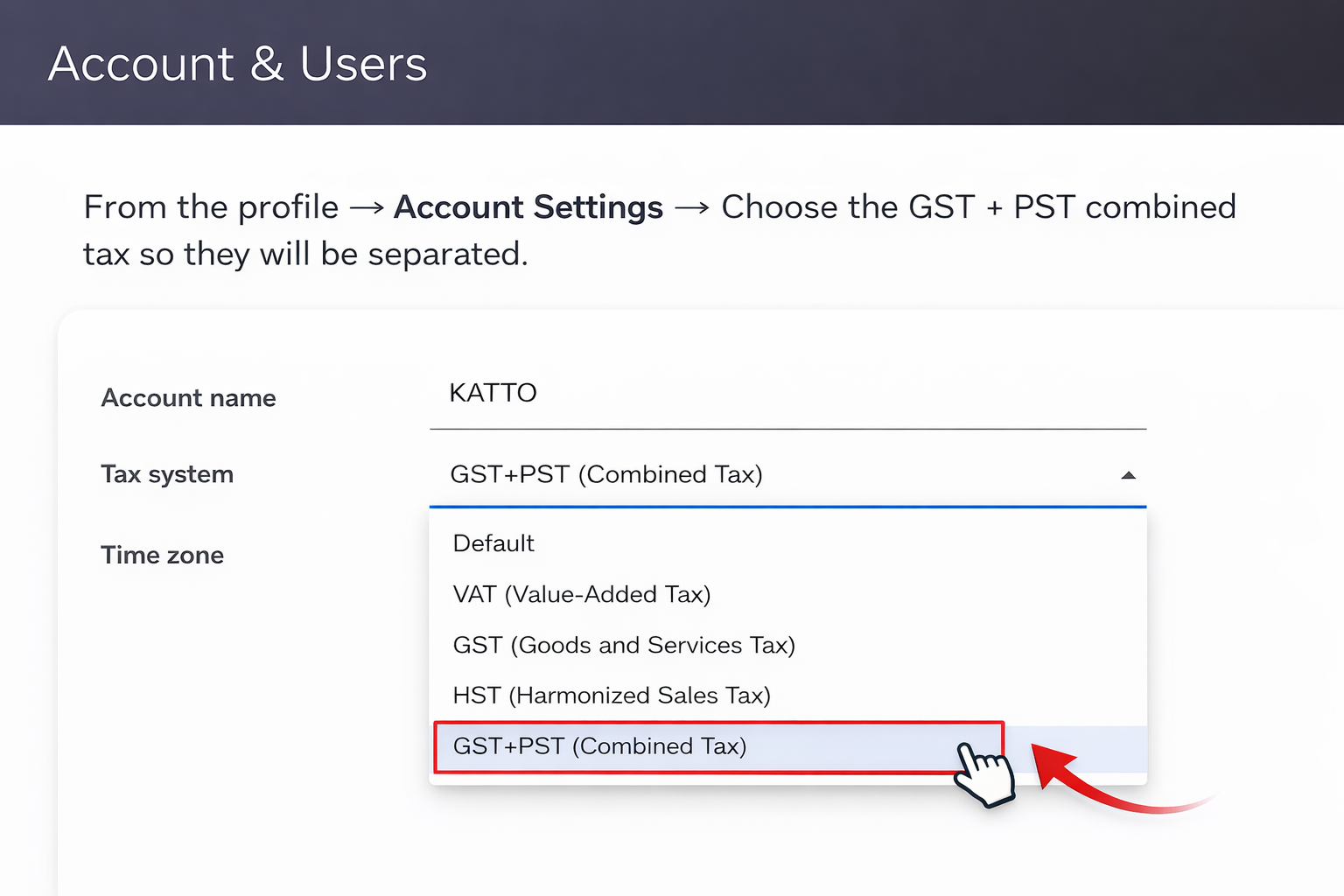
Selecting GST + PST (Combined Tax)
If you want SparkReceipt to correctly separate GST and PST, make sure the GST + PST (Combined Tax) option is selected in your account settings.
From the profile → Account Settings → Tax system → Choose “GST + PST (Combined Tax)”
GST and PST in reports
When documents in a report carry both GST and PST, the report adds separate GST and PST columns, and the totals under expenses and under income show GST and PST next to Taxes. To get your GST and PST for a filing period, create a report with that period as the date range. To follow the tax month by month, set Break totals down by period to Monthly, which shows the combined Taxes for each month. SparkReceipt does not file GST/HST or PST returns. See Can SparkReceipt create a GST, BAS or VAT report, or export to TurboTax?