
SparkReceipt doesn't have a dedicated multi-step approval flow for documents your team uploads. You can run a simple approval process with the Review status every document has, plus Tags:
- Review status: every document is Pending, Needs attention, Reviewed or Rejected. The approver changes it on the document.
- Tags: use tags such as "Approved", "Needs follow-up" or a project name to group and filter documents.
To pay someone back for expenses they paid with their own money, use expense claims instead. The person puts those expenses and their business trips on one claim and submits it, and a Supervisor, Admin or Owner approves it or sends it back. See How do expense claims work in SparkReceipt?.
To check what's waiting, filter Documents by Review status. For larger batches, you can ask SparkAgent to find documents matching certain criteria and update their review status. It applies the change and tells you what it changed.
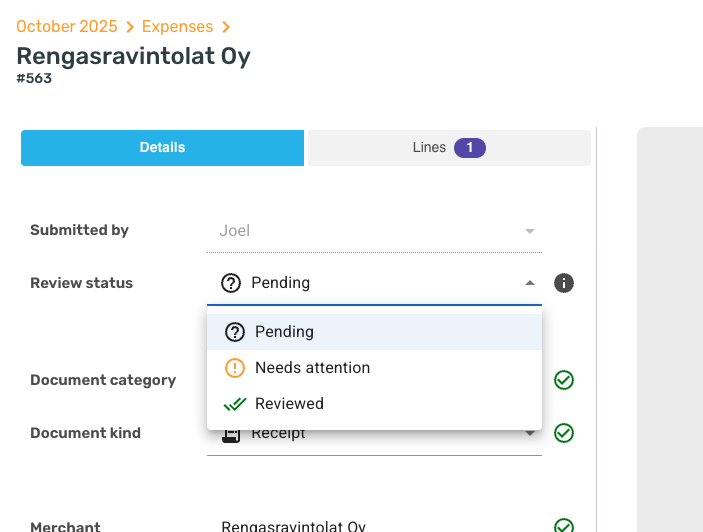
Who can change the review status?
The Review status of a document can be changed by:
- Admins and the Owner, on any document,
- Supervisors, on any document,
- Accountants, on any document,
- Members and Contributors, only on documents they submitted themselves, and only when the account allows it (see below).
The same rule applies everywhere you can change the status: on the document in the web app and the mobile app, in the Actions menu when you select several documents, and when you ask SparkAgent to change it. If you select documents that include someone else's, the review status actions are greyed out unless your role allows reviewing them all.
If the field is greyed out for you on someone else's document, your role doesn't allow reviewing it. To let a person approve documents submitted by others, an Admin or the Owner can change their role to Supervisor in Account & Users (see Changing access levels for users). Your accountant can also do the reviewing, see How to invite your accountant.
Documents in a closed accounting period are read-only, so their review status is locked too.
Can Members approve their own documents?
By default, yes. If someone other than the submitter should approve each document, an Admin, the Owner or an Accountant can turn off Members and Contributors review their own documents under Document review in Account & Users on the web. After that, only Admins, the Owner, Supervisors and Accountants can change a document's review status.
Automations set up by Members or Contributors that change the review status stop working on their documents, and they no longer publish those documents either. The web app tells you how many such automations there are before you turn self-review off.
Can I change "Submitted by"?
No. Submitted by shows the user the document belongs to, usually the person who uploaded, scanned or emailed it in. It can't be edited on the web or in the mobile app. It stays the same even if that user is later removed from the account, so your history shows who added what.
If you need to record someone else, for example the person who made the purchase, use a Tag or the document's description.