
Yes. SparkReceipt supports breaking a receipt's tax into multiple tax lines — for example VAT, GST, PST, HST, or a combined GST+PST for Canadian receipts. When a receipt is scanned, SparkReceipt automatically attempts to detect the total tax and, where applicable, split it into the relevant components such as GST and PST.
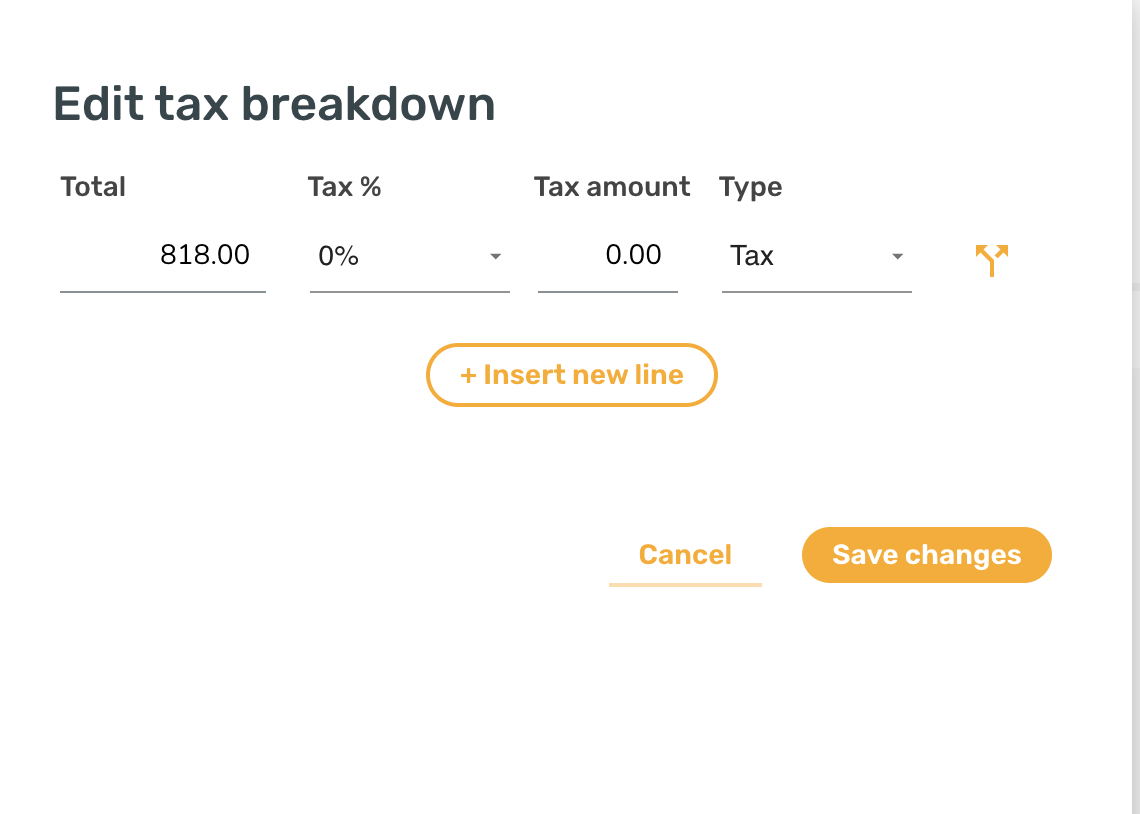
You can review and adjust the breakdown on each document from the tax editor, and you can also define custom named tax rates under Tax rates in your account settings so they're available as quick picks when editing documents.
Tax-inclusive vs. tax-exclusive (net) totals
Every document has one tax mode, which decides how its prices relate to tax:
- Tax included (tax-inclusive / gross) — the prices already contain tax. SparkReceipt works the tax back out of each line, so a line's subtotal is its price minus the tax it contains, and the total stays the same. This is normal for most consumer receipts in VAT countries.
- Tax excluded (tax-exclusive / net) — the prices are net, before tax. SparkReceipt keeps each line price as the subtotal and adds tax on top, so the total is subtotal + tax. This is normal for US and Canadian receipts and for many wholesale / B2B invoices where line prices are net and the VAT appears only as a single total at the bottom.
The mode applies to the whole document — every line follows it. There is no per-line tax mode. Tax included and Tax excluded are the exact labels used in the app.
Why tax can look like it's being subtracted from each line
If a wholesale invoice lists net line prices and shows VAT only once at the end, but the document is set to Tax included, SparkReceipt assumes each line price already contains tax and carves the tax back out of it. That is the behavior some customers describe as "tax subtracted from every line." The fix is to switch the document to Tax excluded (net): the line prices are then treated as net and the VAT is added on top and allocated across the lines instead of being removed from them.
How SparkReceipt picks the mode when it scans
You don't normally set this by hand. When a document is scanned, SparkReceipt detects the tax mode for that specific document, mostly from the country or region of the receipt — receipts from tax-exclusive regions such as the United States and Canada are treated as Tax excluded, while most European (VAT) receipts are treated as Tax included. Your personal default (below) is used only as a fallback, when the scan can't determine a mode on its own.
Because detection happens per document, there is no setting that forces every new document into one fixed tax mode. If a particular invoice is detected the wrong way, change that document's mode.
Switching a single document to net (tax-exclusive)
Mobile app (iOS / Android). Open the expense or income, find the Tax mode field, and choose Tax excluded. The whole document recalculates: line prices are treated as net and tax is added on top. The ⓘ next to the field explains inclusive vs. exclusive with a worked example.
Web app. The web document editor does not currently expose a per-document tax-mode switch. To flip an individual document between Tax included and Tax excluded, use the mobile app, or set your account default (below) so future scans lean the right way.
Setting a default tax mode for new documents
You can choose the tax mode SparkReceipt falls back to when a scan can't determine one:
- Web app — open your Profile settings and set Tax calculations to Tax excluded (or Tax included).
- Mobile app — open your profile settings and set Tax calculation to Tax excluded. You also pick this during onboarding under Default tax mode.
Keep in mind this is a fallback default, not an override: a scan that confidently detects a region's tax convention will still use that convention. Changing the default also does not retroactively re-mode documents you've already scanned.
Can automations or AI rules force a tax mode?
No. Auto-assign rules and Custom AI instructions (Elite) can set fields like category, tags, payment method and totals, but they cannot set or pin a document's tax mode. Recurring-document automations do have a tax-mode field, but it applies only to the documents that automation generates on a schedule — not to receipts and invoices you scan or upload. To change the tax mode on a scanned document, edit it directly in the mobile app, or adjust your default and re-scan.