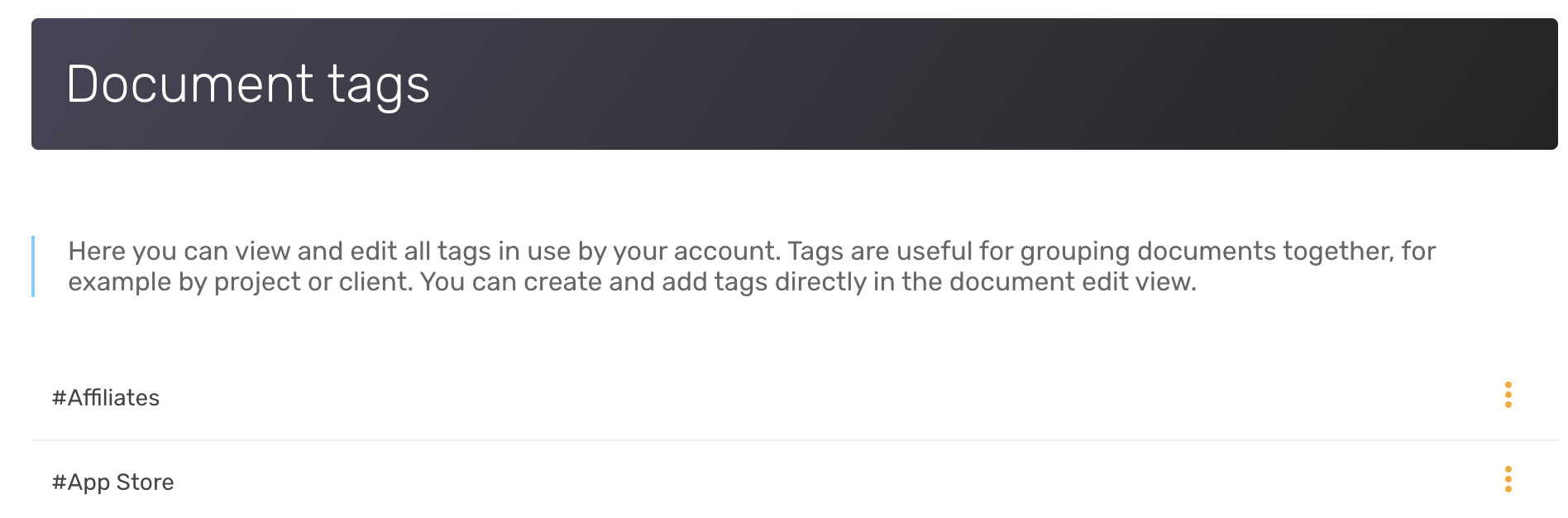
🏷️ Step 1: Tag Your Expenses
When uploading or editing receipts, add a tag that identifies the client or group — for example:
-
Client: Acme Ltd -
Project: Q4 Marketing -
Reimbursable
You can add multiple tags if needed.
📄 Step 2: Generate a Custom Report
Using the SparkReceipt Web App :
-
Go to your Documents view
-
Use the search bar or tag filter to show only the relevant tagged documents
-
Select the receipts you want to include
-
Click Export
-
Choose your preferred format: PDF, Excel, or CSV
You now have a report that includes only the expenses related to that client or tag.
Tags offer flexible and powerful filtering to create custom reports for any use case.