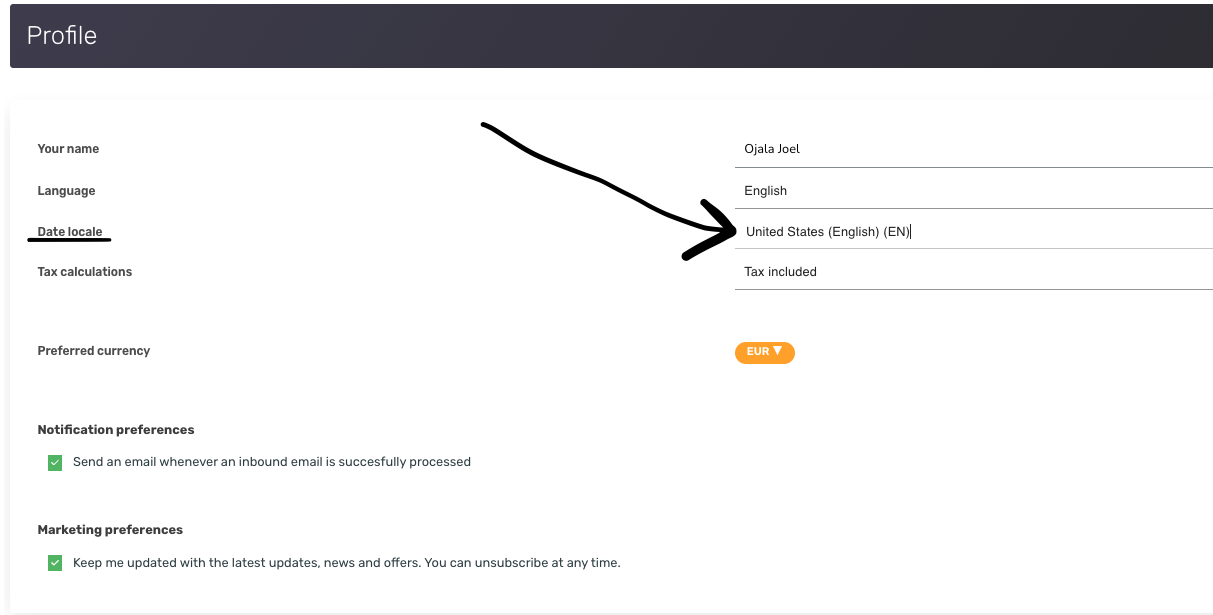
If dates in date pickers, calendars, or reports show in an unexpected order or in the wrong language, that's controlled by your Date locale setting.
Where to change it
Open your Profile in the web app. Under Preferences you'll find:
- Date locale — a regional setting (e.g.
en-GB,en-US,de,fi,fr,ja) that determines both the date format and the language used in calendars and date pickers. - Week starts on — choose Saturday, Sunday, or Monday.
- Language — the overall app language (separate from Date locale).
The Date locale is per-user, so changing it only affects your own account.
What the format looks like
The format follows the convention of the region you pick. A few examples:
en-GB(United Kingdom):04/07/2025— 4 July 2025en-US(United States):7/4/2025— July 4, 2025de(Germany):04.07.2025fi(Finland):4.7.2025ja(Japan):2025/07/04
The dropdown lists all available regional locales. If the format you want isn't showing, switch to a more specific regional code (for example, en-GB instead of en) so SparkReceipt knows which country's convention to apply.
Dates in report exports
Your Date locale also controls how dates are formatted in the reports you export. CSV, Excel and PDF reports now write each document's date in your region's convention — so en-GB gives 04/07/2025 and en-US gives 7/4/2025 in the exported file, matching what you see in the app. If a report comes out with dates in an order you didn't expect, change your Date locale here and generate the report again.
Tip
If date pickers also show weekday names in a language you don't recognize, that's the Date locale rather than the app Language — switch it to a locale whose language you read comfortably.