
If a team member's role in your account changes, you can update their access level directly from the user list. Only Admins and the account Owner can change another user's role.
Steps
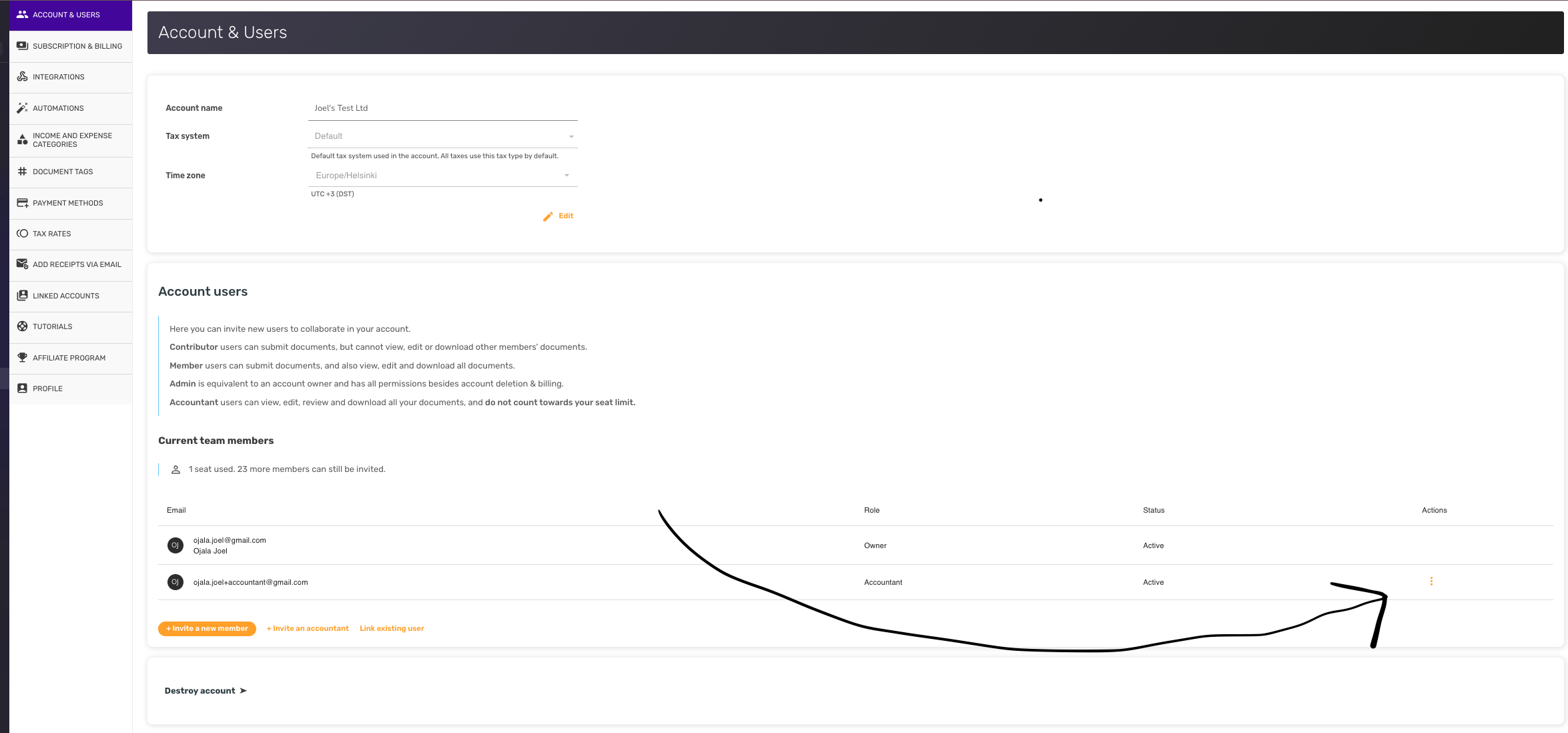
- Open Account & Users from your account settings.
- Find the user whose access level you want to change and open their entry.
- Choose Edit, select the new role, and save.
Available roles
The role dropdown in the edit dialog lets you switch between:
- Contributor — can submit documents, but cannot view, edit, or download other members' documents.
- Member — full access to the account's documents; counts toward your seat quota.
- Admin — everything a Member can do, plus user management and account settings.
- Accountant — read-only collaborator intended for accountants and bookkeepers; does not count toward your seat quota.
The Owner role belongs to the person who created the account and can't be changed from the user list. Supervisor is a specialized role used in some accountant-agency setups and is also assigned outside of this dialog.