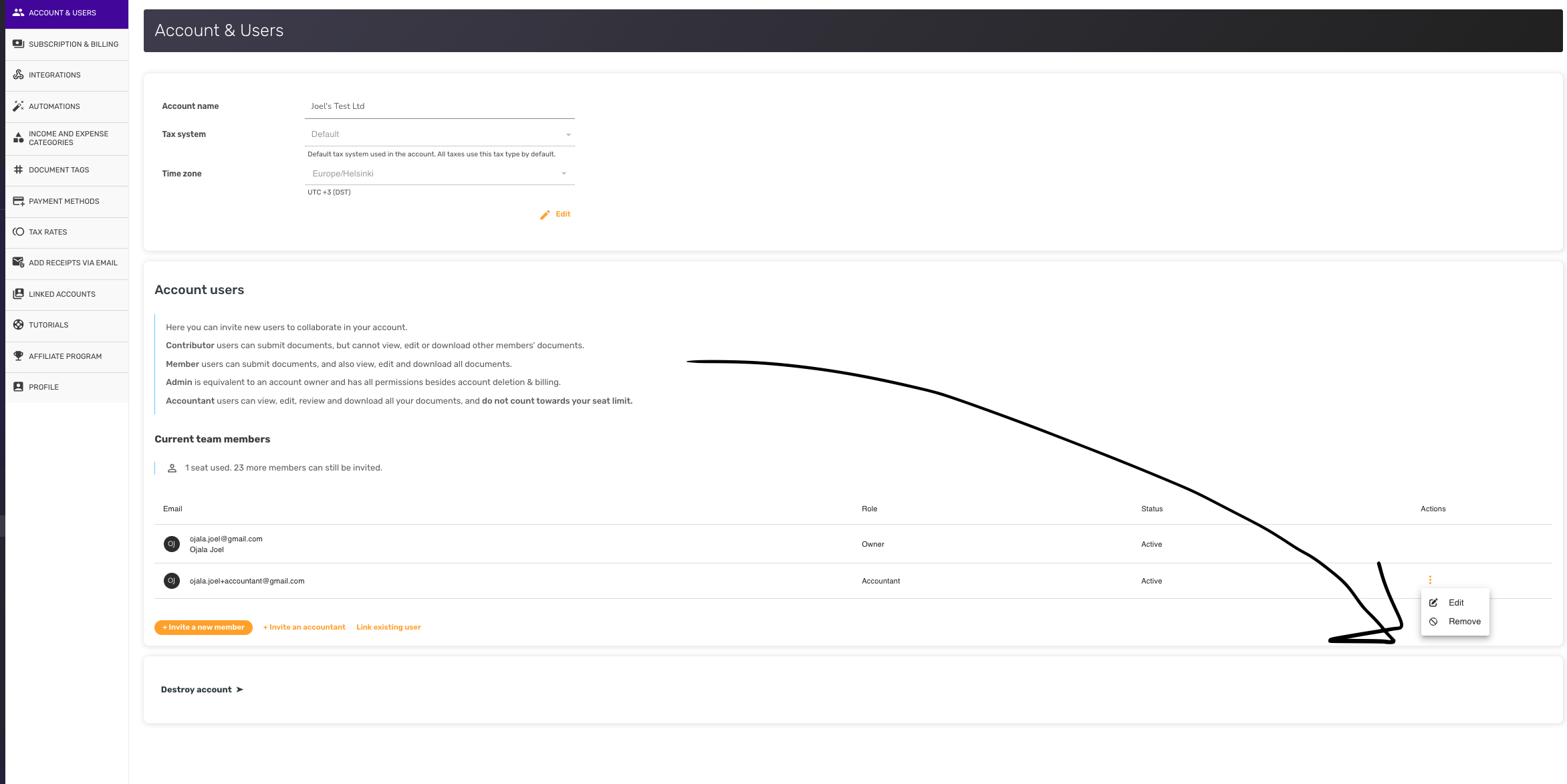
When a team member no longer needs access to SparkReceipt, you can revoke their access from the Account & Users section. This makes sure only current team members can see your financial records.
Steps
- Open Account Settings from the bottom-left of the navigation, then choose Account & Users.
- Find the user you want to remove and open their entry.
- Choose Remove to revoke their access.
Only Admins and the account Owner can remove users. You can't remove the Owner, the last remaining seated member, or yourself.
What happens to their documents
Removing a user does not delete the documents they uploaded. Those records stay in your account so your reports, history, and bank-statement matches remain intact — the removed user simply loses access.
Restoring access later
If the same person needs access again later, you don't have to start over with a new invite. Use Link existing user in the Account & Users view to restore their access; their previous documents stay associated with the same person.