If a receipt, invoice or statement ended up in the wrong linked account, you can move it to another account you belong to. The document leaves the current account and appears in the one you pick, with a new document number there.
Move one document
On the web:
- Open the document.
- Choose Move to linked account from the action buttons at the top. If they don't all fit, it is under Actions.
- Pick the account to move it to.
- Check what the move changes (see below) and choose Move to followed by the account's name.
In the mobile app:
- Open the document.
- Open the document's menu and choose Move to account....
- Pick the account.
- Check what the move changes and tap Move to followed by the account's name.
Move many documents at once
You can move up to 100 documents in one go.
On the web:
- Open Documents in the sidebar.
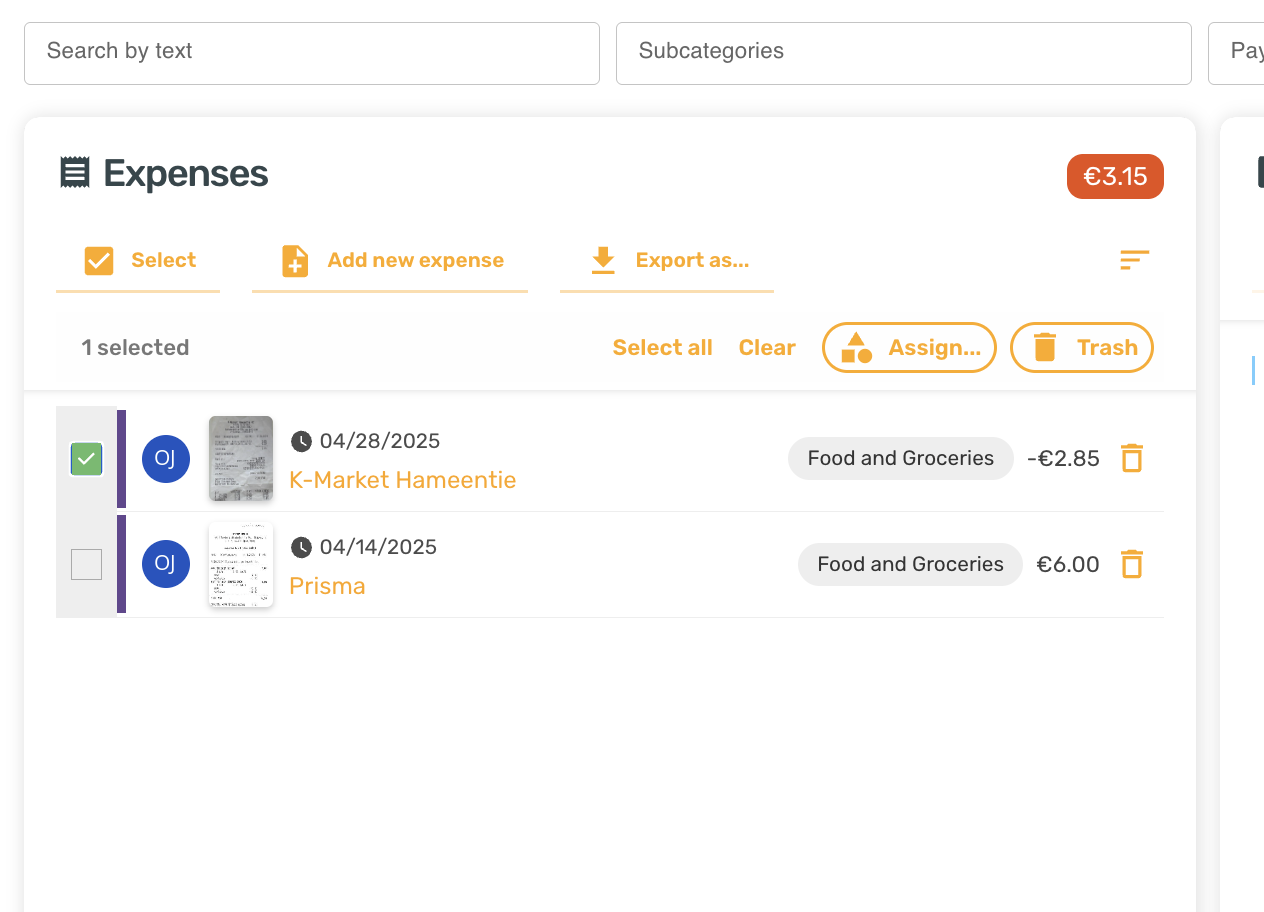
- Tick the documents you want to move.
- Open Actions in the bar that appears, choose Move to account and pick the account.
- Check the list and what the move changes, then choose Move followed by the number of documents and the account's name.
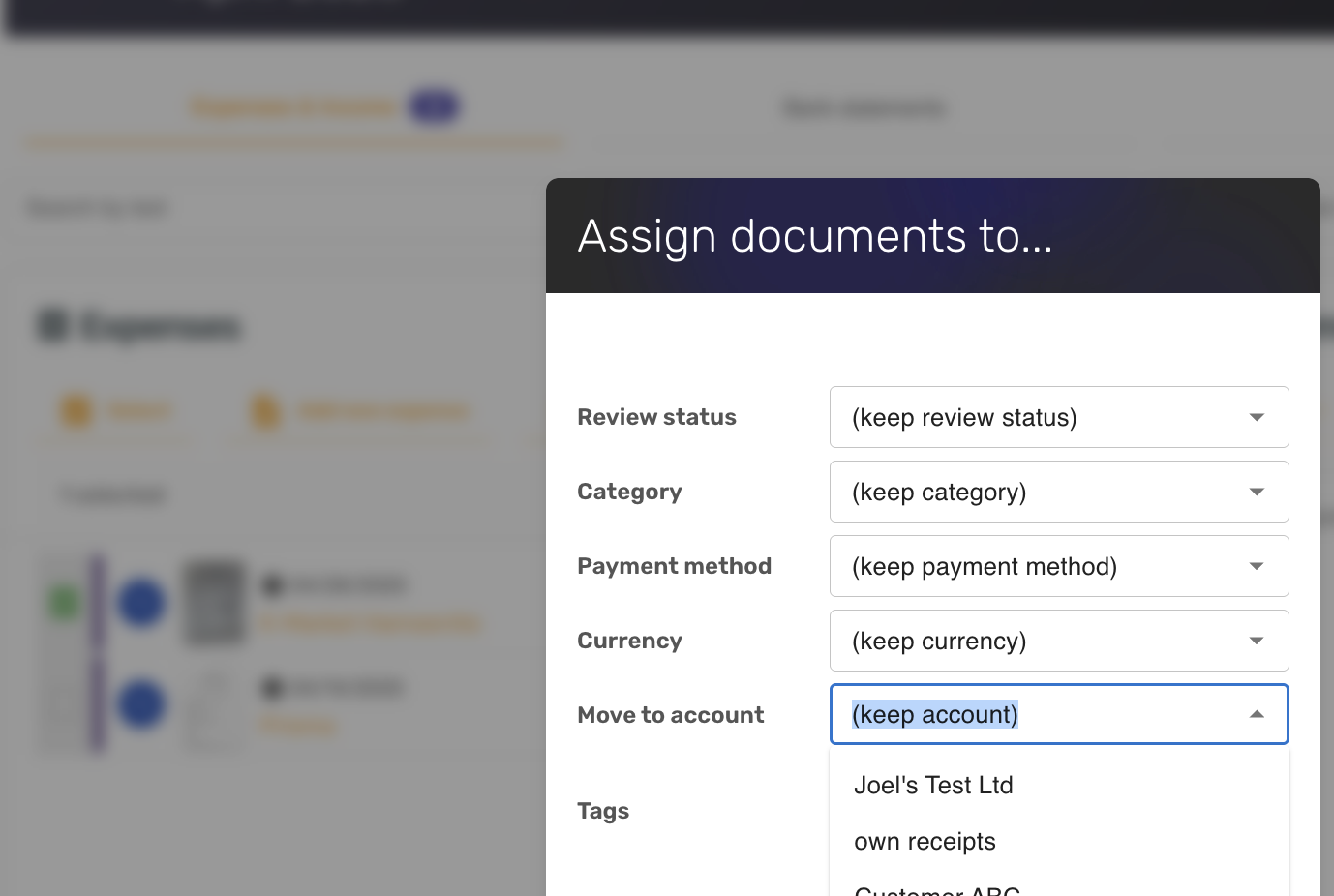
Some older document lists (for example a month view) have an Assign... button instead. Its dialog has a Move to account field that does the same move and shows the same check before it goes ahead.
In the mobile app:
- In the Documents tab, a month, a filtered list, Needs attention or the recent documents on Home, tap Select, or press and hold a document and choose Select multiple.... Then tap the documents you want to move.
- Tap More in the bar at the bottom and choose Move to account.
- Pick the account, check what the move changes and tap Move to followed by the account's name.
What SparkReceipt shows before you confirm
Before a document moves, SparkReceipt checks what the move would change and lists only what applies, so you can decide before anything happens:
- The document was published from this account. The booking stays in this account's accounting software, and the document arrives in the other account as not published.
- AI Fields that will be added to the other account so their values move too, by name.
- AI Field values that will be removed because the other account has no AI Field with that name, and you can't add one there (you are a contributor in that account).
- AI Fields that hold only one value in the other account, so only the first value is kept.
- Tags the other account doesn't have, which are removed from the document because you can't add them there (you are a contributor in that account).
- Line items whose tax rate has no match in the other account. The amounts stay and the document is marked for review.
- For one document, a closed month in either account, which an admin, the owner or an Accountant has to confirm.
For several documents, the confirm counts the documents each point applies to. Documents that can't move are listed apart with the reason, and documents dated in a closed month are listed as left out. They stay where they are and the others move.
On the web, if SparkReceipt can't check the move (for example the connection drops), it says so and you can still move. In the mobile app, one document can still be moved without the check, but a move of several documents stops with an error. Try again when you are back online.
Who can move documents
You can move a document only to an account you are a member of, and the move options only show when you belong to more than one account. A contributor can move only the documents they added. The review status doesn't matter: Reviewed, Pending and other documents move the same way.
What happens to the document's details
Kept as they are: files, line items with their amounts, tax amounts and percentages, the currency, comments and the change history. The accounting details of the old account are reset, as described below.
Matched in the other account: Categories and Tags by name, and the payment method to the same payment method there. If one doesn't exist there yet, SparkReceipt creates it. If you are a contributor in the other account, nothing is created there: a Category, Tag or payment method that the other account doesn't have is left empty, and the line items without a Category are categorized again in the other account. A split payment keeps each of its payment methods the same way.
AI Fields: every value moves. If the other account has no AI Field with the same name, SparkReceipt adds one there, a copy of yours placed after its existing AI Fields. If the other account's AI Field takes only one value, the first value is kept. If you are a contributor in the other account, no AI Field is added there and values without a same-named AI Field in the other account are dropped.
Tax rates: a tax rate you picked from your Tax rates list is matched to the same rate in the other account when both accounts are in the same country (and, in Canada, the same province) and use the same tax system. The match includes how the tax works, so a reverse charge rate is matched to a reverse charge rate. If there is no single matching rate, the pick is removed and the tax amounts stay as they were. The document gets the Needs Attention status and a comment saying a tax rate was removed, so you can pick the rate in the other account. The status clears once you have picked a rate on every line that lost one.
Document type: a custom document type is matched by its name in the other account. If that account doesn't have it, the document gets the standard type of the same kind.
Publishing starts over: a document published to QuickBooks, Xero or other accounting software arrives as not published. The QuickBooks Customer/Project, Billable, Location and each line's Class are cleared, and so are the lines' Xero tracking categories, because they belong to the old account's accounting company. Pick them again in the other account if it publishes to accounting software. The record already booked in the old account's accounting software stays there. SparkReceipt doesn't delete or change it, so remove it there yourself if it shouldn't be in those books.
Released: matches to bank transactions, share links, duplicate pairs and the link between a refund and the expense it refunds. A document on an expense claim that hasn't been submitted yet leaves the claim.
The AI review of the document moves with it.
Why a move can be refused
When a document can't move, SparkReceipt says so before you confirm, naming the document and the reason. If something changes in between (a publish starts after the check), the move still stops and the message names the document. After a move of several documents, SparkReceipt lists the documents that stayed and why.
The reasons:
- A closed accounting period. If the document's date is in a closed period of either account, an admin, the owner or an Accountant has to confirm the move. A move of several documents skips those documents instead. See Closing accounting periods to lock past documents.
- A submitted expense claim. A document on an expense claim that has already been submitted can't be moved.
- A publish in progress. While the document is being published to your accounting software, it can't be moved. Wait for the publish to finish, then move it. In a move of several documents, the others still move.
- A document in the trash. The move option is hidden for it. Restore it from the trash first.
If a move fails without a clear reason, contact support and tell us which document it was.
On your other devices
A moved document leaves the old account's lists on your other devices and browser tabs right away, without a reload. If the document is open somewhere else, that view closes and says the document has moved.
Before the mobile app moves a document, it waits until your last changes to it are saved, so no change reaches the old account after the move. If a change couldn't be saved, the app doesn't move the document. Open the document, tap Not saved and choose Retry or Dismiss, then move it again. In a move of several documents, nothing moves until every selected document's changes are saved, or you leave that document out of the selection.
Moving bank statements and single transactions
A bank or credit card statement is a document too, so you can move the whole statement with all its transactions in the same way. The moved statement is no longer linked to a bank or card account (one of your Transaction accounts), since those belong to the old account. Transactions marked as a transfer between your accounts go back to Unmatched.
Single transactions can't be moved on their own. They stay in the account where the statement was uploaded. In Transactions, Assign account… sets the bank or card account a transaction belongs to (one of your Transaction accounts). It doesn't move anything to a linked account, which is why that menu lists bank accounts.
If a business statement has personal transactions that you want in your personal linked account, you have two options:
- Turn them into entries and move those. In Transactions, choose Create expense on each personal transaction (or select several and use Create entries), then move the new expenses to your personal linked account as described above. A transaction you already excluded needs Restore first. Back in the business account, the transaction is no longer linked to the moved entry. If it shows up as Unmatched again, exclude it there.
- Upload the statement in both accounts. SparkReceipt can't copy a statement into several linked accounts, but you can upload the same file in each account. Each upload is extracted on its own. Then exclude the business transactions in the personal account and the personal ones in the business account.
See Transfers, exclusions, and creating entries in the Transaction Manager for Exclude, Restore and Create expense.
Moving trips
A finished trip filed under the wrong account can move to another linked account too, with its route, distance and stops. You can move trips on the web, in the mobile app, or by asking SparkAgent, for example "Move yesterday's trip to my company account". SparkAgent shows what the move changes and moves the trip once you approve.
One trip on the web:
- Open Trips in the sidebar and open the trip.
- Choose Move to account at the top.
- If you have more than two accounts, pick the account. With two, the other one is picked for you.
- Check what the move changes and choose Move to followed by the account's name.
One trip in the mobile app:
- Open Trips and open the trip.
- Tap the move icon (Move to account) at the top. If the actions don't all fit, it is under the … menu.
- If you have more than two accounts, pick the account. With two, the other one is picked for you.
- Check what the move changes and tap Move to followed by the account's name.
Several trips: on the web, in Trips, tick the trips, choose Move to account in the bar that appears and confirm. In the mobile app, in Trips, tap Select (or press and hold a trip), tap the trips, then tap Move in the bar at the bottom (under More if it doesn't fit) and confirm. You can move up to 100 trips at once. Trips that can't move stay where they are and the others move (see below for what the confirm shows).
In the mobile app, a trip has to finish syncing before it can move. If it hasn't, the app says so; move it once it has synced.
Who can move a trip: a member can move the trips they drove, and an admin or the owner can move any trip in the account. Either way you must be a member of the account you move the trip to.
The trip goes to its driver in the other account, even when an admin or the owner moves it, so the driver must be a member there. It gets a new trip number in that account. Its route, distance, stops, passengers, purpose and business or personal classification stay as they are.
The vehicle: SparkReceipt looks for the trip's vehicle in the other account, first by registration and then by name, among the account's shared vehicles and the driver's own. If there is none, the vehicle is copied there for the driver. A vehicle's rate is per the account's distance unit and in its mileage currency, so a copied vehicle's rate is converted when the two accounts use a different unit or currency. If today's exchange rate isn't available, the copy gets no rate and the other account's default rate applies. The converted rate is today's exchange rate applied to the old one, so check it against the mileage allowance that applies to the other account (in the UK, for example, HMRC's approved rate).
The reimbursement is worked out with the other account's rates, unit and currency once the trip has moved. Before you confirm, SparkReceipt shows what the move changes:
- Whether the vehicle is found in the other account or copied there, and the copied vehicle's converted rate.
- The reimbursement in both accounts, when the move changes it.
- That the other account has no mileage rate for the trip, so it shows no reimbursement there until you add one in that account under Settings > Vehicles, in Mileage rates.
- That the trip leaves a draft expense claim.
- That the trip's mileage leaves Schedule C, or counts on the other account's Schedule C. See IRS Schedule C export.
- That the trip falls on a date in another tax year in the other account's time zone.
- That the trip's date in the other account's time zone has a different IRS standard mileage rate on that account's Schedule C.
For several trips on the web, the confirm lists each trip whose reimbursement changes, with its date and the amount before and after, and each vehicle that is copied with its converted rate. For each of the other points it counts the trips it applies to. A vehicle that is found in the other account isn't shown. Trips that can't move are counted apart by reason. They stay where they are and the others move. In the mobile app, the confirm for several trips doesn't show these checks yet.
After a move of several trips, SparkReceipt lists the trips that stayed and why, for example a trip that was added to a submitted expense claim after the check.
On the web, if SparkReceipt can't check the move (for example the connection drops), it says so and you can still move.
A trip can't move when:
- It isn't finished yet. Stop the recording first.
- Its driver isn't a member of the other account.
- It is on an expense claim that has already been submitted.
- The other account has reached its monthly trip limit.
Once the driver's app is up to date, points for the trip that the phone hasn't sent yet go on to the trip's new account.
Copying instead of moving
SparkReceipt doesn't copy documents between linked accounts. A move takes the document out of the account it was in. The only copying between accounts happens when you create a new linked account, which can start with the Categories, Tags, payment methods and users of an existing one. See How to set up linked accounts (sub-account).