
Discount codes are applied during the upgrade flow in the web app, before you're sent to the payment page. The key thing is to set up the plan and seat count first, then add the discount code, then continue to checkout — the code needs to be in place when the order is sent to our payment provider.
Steps
- Go to Subscription & Billing in your account settings and start an upgrade or plan change.
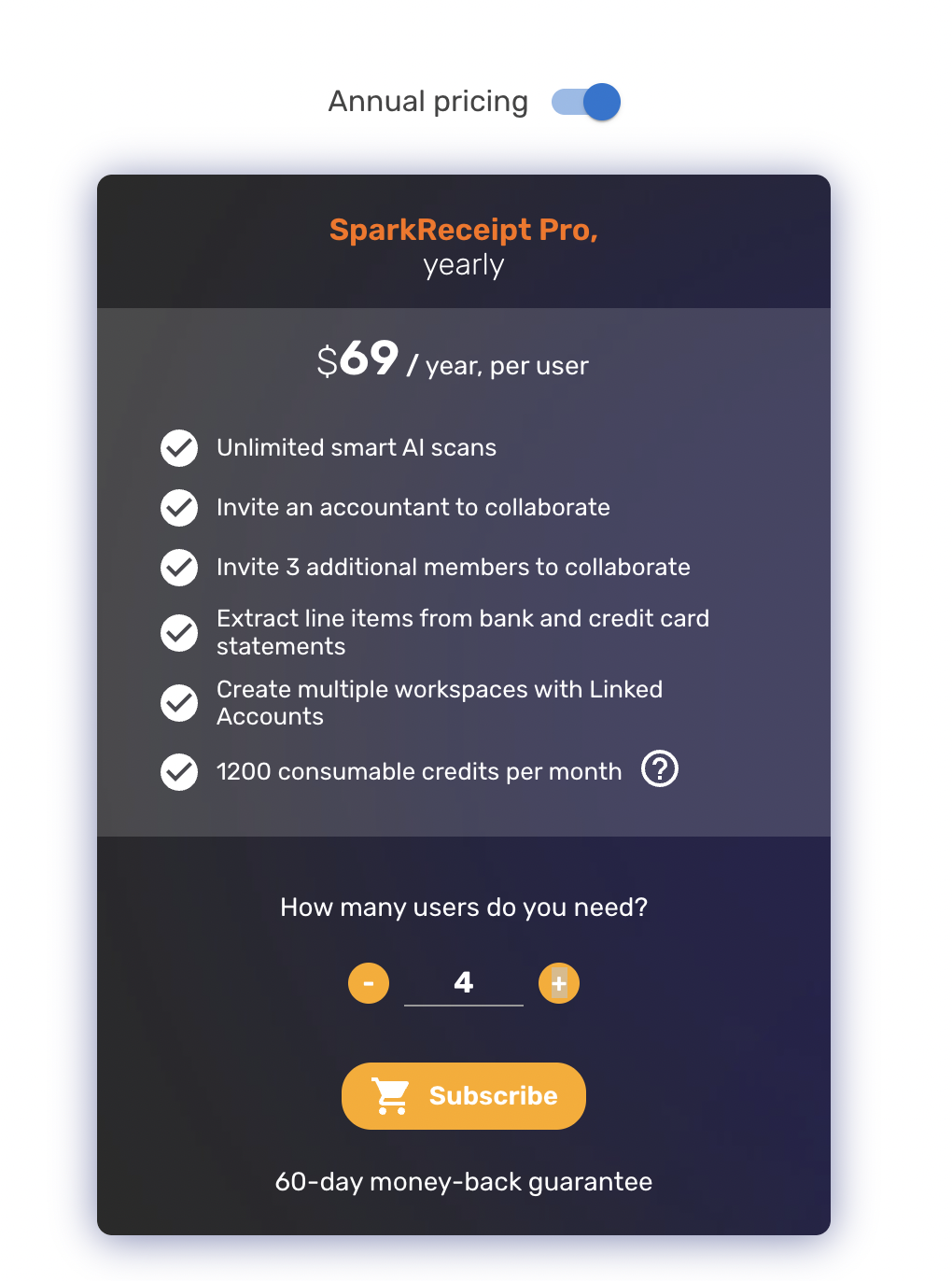
- In the Upgrade your plan / Change plan dialog, pick the billing interval and the number of seats you want.
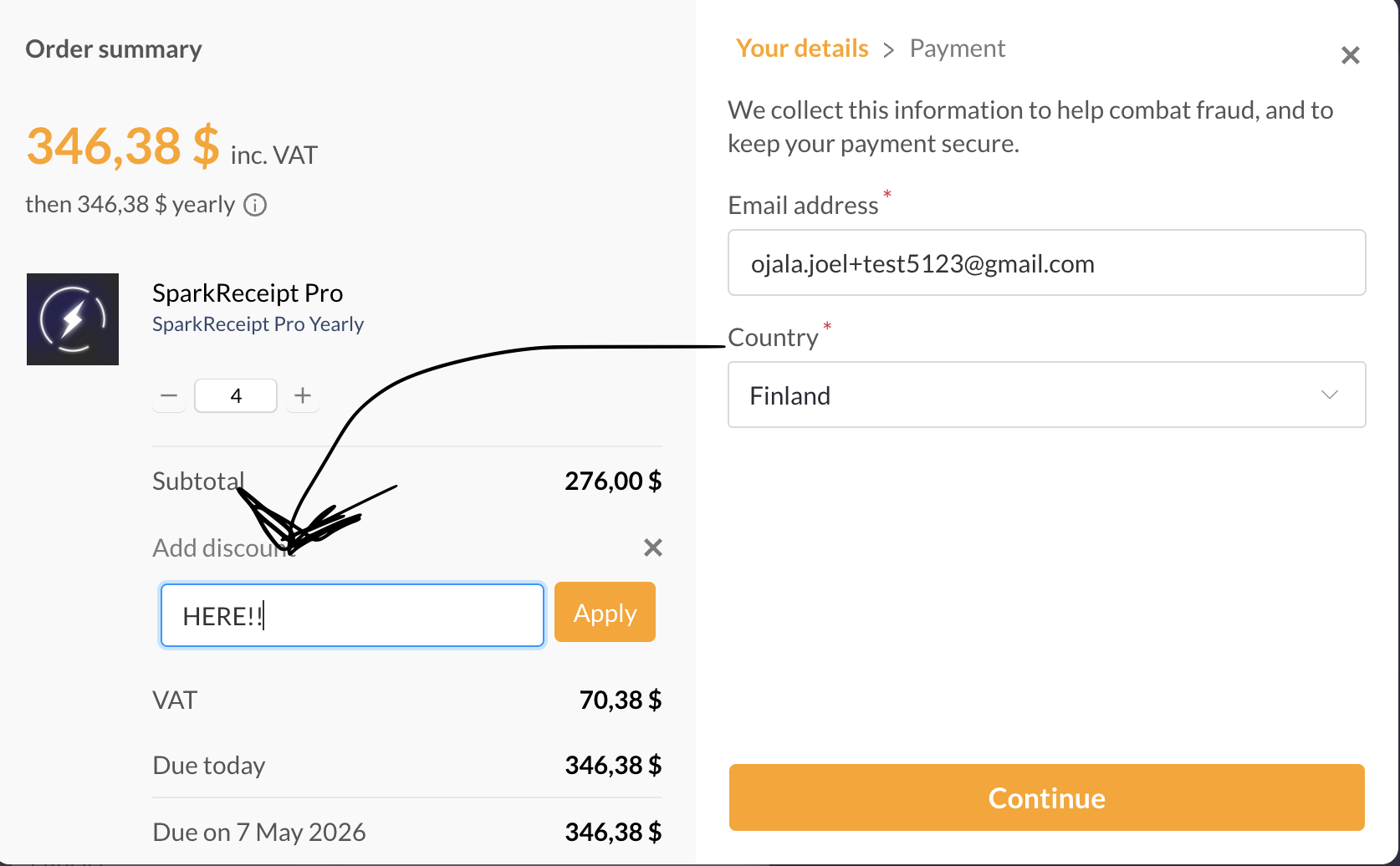
- Click Add discount code, paste your code, and press Apply. You'll see a confirmation that the code is applied.
- Click Continue to checkout to complete payment. The discount will be reflected in the final price.
If your code isn't working
- Double-check you're entering the code in the discount-code field of the plan dialog, not in a coupon-redeem dialog — coupon codes (for example AppSumo stacking codes) are redeemed separately and can't be combined with discount codes.
- Make sure the code hasn't expired and is still valid for the plan and interval you're upgrading to.
- If you see "Discount code not found", re-check the code for typos; discount codes are matched in a case-insensitive way.