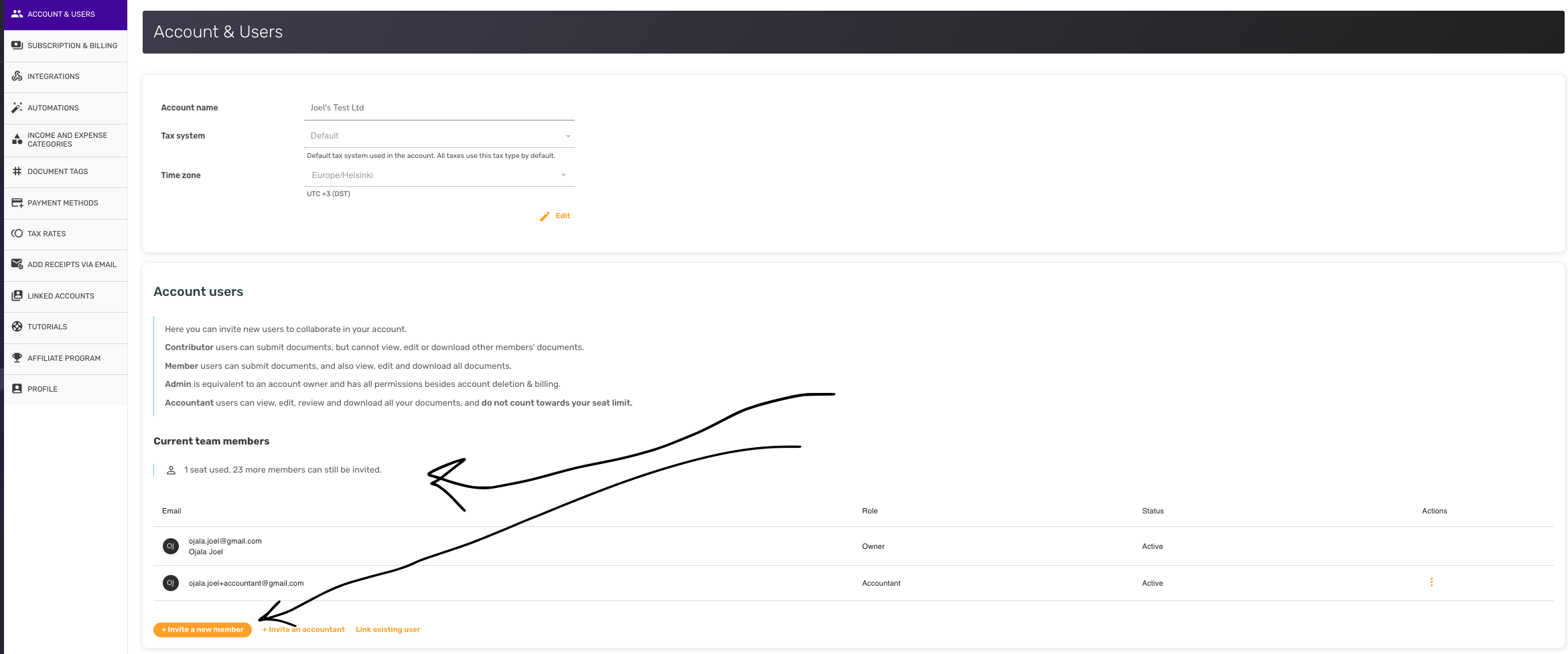
To invite a new member, open the Account & Users section in the SparkReceipt web app and select + Invite a new member. In the mobile app, open Account settings → Account users and tap Invite member. Enter the invitee's email address, choose their role from the dropdown, and send the invitation. Only admins and the account owner (and Accountants whose Accountant permissions are set to Admin) can invite or manage users.
Each regular user takes one seat. If you're out of seats, first add more in Subscription & Billing (Add or remove seats), then come back and send the invitation. See How do I upgrade to Elite or change my plan? for how seat changes are billed.
What an invited user receives
The invitee gets an email with a link to accept the invitation. The smoothest path is for them to accept using that link rather than signing up from scratch. If the email lands in spam, you can copy the invitation link in the web app and share it with them directly. Signing up on their own without the link doesn't connect them to your account, whatever email address they use. See What happens when inviting a new team member? for more detail.
How seats are counted
A few rules govern your seat usage:
- A pending invitation reserves a seat immediately — not only when the invitee accepts. This stops you from over-inviting past your limit, so an unaccepted invitation still counts against your allowance until it's accepted or removed.
- Accountants don't use a seat. Users with the Accountant role are free on every plan and don't count toward your seat limit. Use + Invite an accountant for them, see How to invite your accountant.
- Removing a user frees their seat. When you remove a member from Account & Users, their seat returns to the pool and can be reused for someone else. You can't remove the account owner, and you can't remove the last remaining seated user in an account.
In the Account & Users view you can always see how many seats are in use and how many invitations you have left. When you reach your limit, SparkReceipt prompts you to upgrade your subscription to add more seats. If you own several linked accounts, it offers Link existing user instead.
Seats are shared across your linked accounts
If you use linked accounts (a root account with one or more sub-accounts), your seats are pooled across the whole group, not counted separately per account. The linked accounts share one subscription, so its seats are one allowance for the whole group, and your owner seat counts only once.
Because of this:
- The "seats used" number you see reflects usage across all of your linked accounts combined.
- The same person counts as a single seat even if they're a member of several of your linked accounts. SparkReceipt recognises them as the same underlying user and won't bill you twice for them.
Giving one person access to several accounts: use Link existing user
A user invited to a specific account becomes a member of that account only. Inviting someone to your root account does not give them access to your sub-accounts.
When you want an existing teammate to also work in another of your linked accounts, use Link existing user in Account & Users instead of sending them a fresh invitation email. Linking:
- Reuses their existing login — they keep one account and one password across all the workspaces you share with them.
- Avoids creating a duplicate user, which keeps your team list clean.
- Doesn't consume an extra seat when that person is already a seated user in one of your linked accounts — because they're the same user, they still count as one seat in your shared pool.
If you've run out of seats, SparkReceipt will actually suggest this: "You have no available seats. You can link users who already have an account with one of your other organizations." There's also a Link all users from... option if you want to copy an entire account's team into another account at once.