
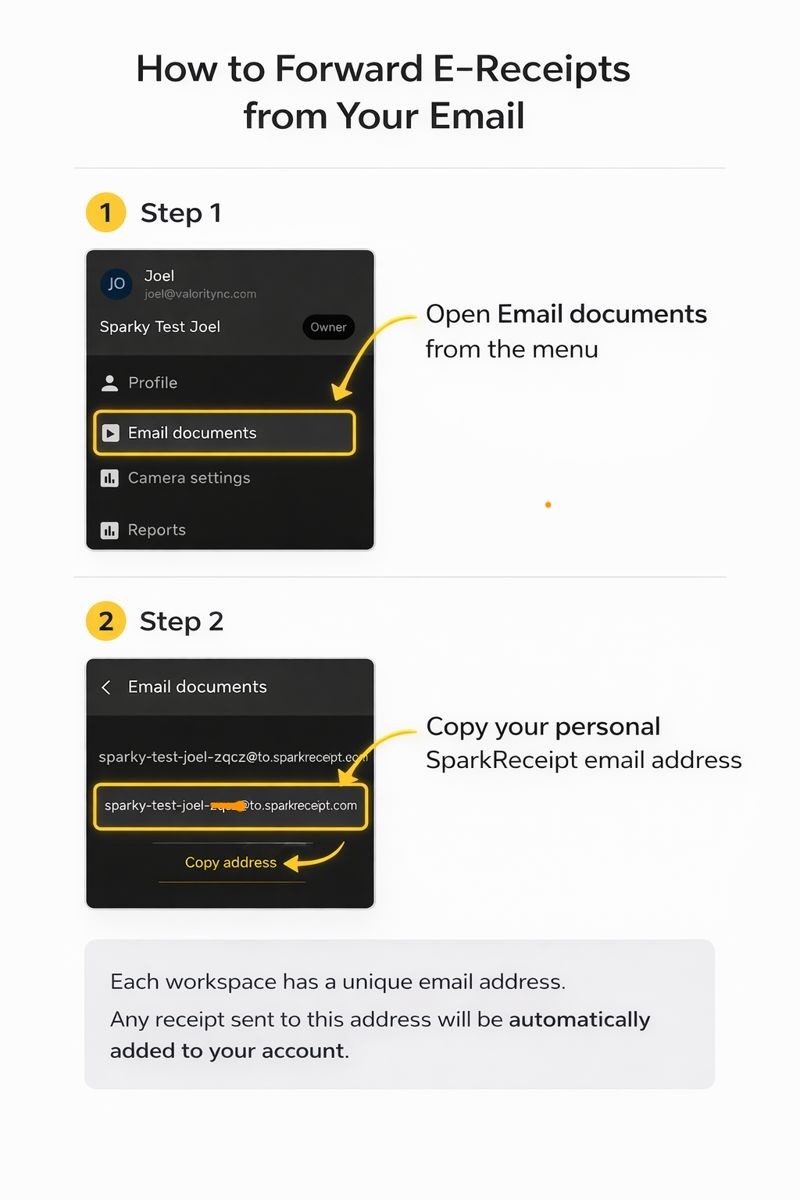
Every SparkReceipt user has a personal forwarding address for each account they belong to. Forward a receipt or invoice email to that address and SparkReceipt scans it and adds it to that account. You'll find the address under Settings → Scan receipts from email in the web app, or under Scan from email in the mobile app's main menu.
SparkReceipt can get receipts out of your email in two ways, and you can use both:
- Forwarding to your personal SparkReceipt address. Available on every plan. You forward individual emails, or set up forwarding rules in your email client. This article covers that workflow.
- Automatic email scanning. Connect a Gmail, Microsoft or IMAP mailbox and SparkReceipt reads new mail on its own. It is included in Pro and Elite. See Automatic email scanning.
To bring in receipts that are already sitting in your mailbox, see Email history extraction. History extraction needs a connected mailbox, so it doesn't work through the forwarding address.
1. Find your personal forwarding address
- Web app: open Settings → Scan receipts from email. The address is in the Forward receipts via email section under Your personal inbound address.
- Mobile app: open the main menu and tap Scan from email. The address is in the Forward manually card, with a Copy address button.
Both email attachments and receipts written into the email body are scanned.
Save the address in your email contacts. Most email clients then suggest it as you type, which makes forwarding quicker.
A separate forwarding address for each linked account
Each linked account has its own forwarding address, and each member of an account has their own address for it. If you belong to three accounts, you have three addresses. Mail sent to an address always lands in the account that address belongs to.
The settings page shows the address for the account you have open. To get the address for another linked account, switch to that account first and open Settings → Scan receipts from email (web) or Scan from email (mobile) again. In the web app, a note under the address reminds you which account it belongs to when you have more than one.
You don't need to create a new account just to get a new forwarding address. If you want documents for a separate business to arrive separately, set up a linked account and use its address.
Renaming an account gives it a new address. Your previous addresses keep working, up to five in total, so update your forwarding rules when you can.
Can the account owner see other users' forwarding addresses?
No. Each user sees only their own forwarding address, on their own Scan receipts from email page. Owners and admins can't look up another member's address in the app. Ask the team member to copy theirs from the settings page, or have them forward to their own address. Documents they forward land in the shared account either way.
If the same email is sent to two members of the same account, SparkReceipt creates one document, not two.
Can I forward from a different or second email address?
Yes. SparkReceipt doesn't check who the email comes from. It only looks at the address the email was sent to. You can forward from your work email, your personal email, a shared mailbox, or set up forwarding from any provider, and there are no extra sender addresses to register.
That also means anyone who knows your forwarding address can send documents into your account, so share it only with people and services you trust.
If you meant something else by "adding an email address":
- Connecting another mailbox for automatic scanning has a plan limit. See How many mailboxes can I connect?
- Changing the email you sign in with is covered in Changing your email address. Each user signs in with one email address.
- Giving a colleague their own address means inviting them to the account. Each member gets their own forwarding address. See Inviting new users.
2. Forward receipts from your email client
When an e-receipt arrives:
- Open the email.
- Select Forward.
- Check that the attachments are still included.
- Send it to your personal SparkReceipt forwarding address.
3. Confirmation email and push notification
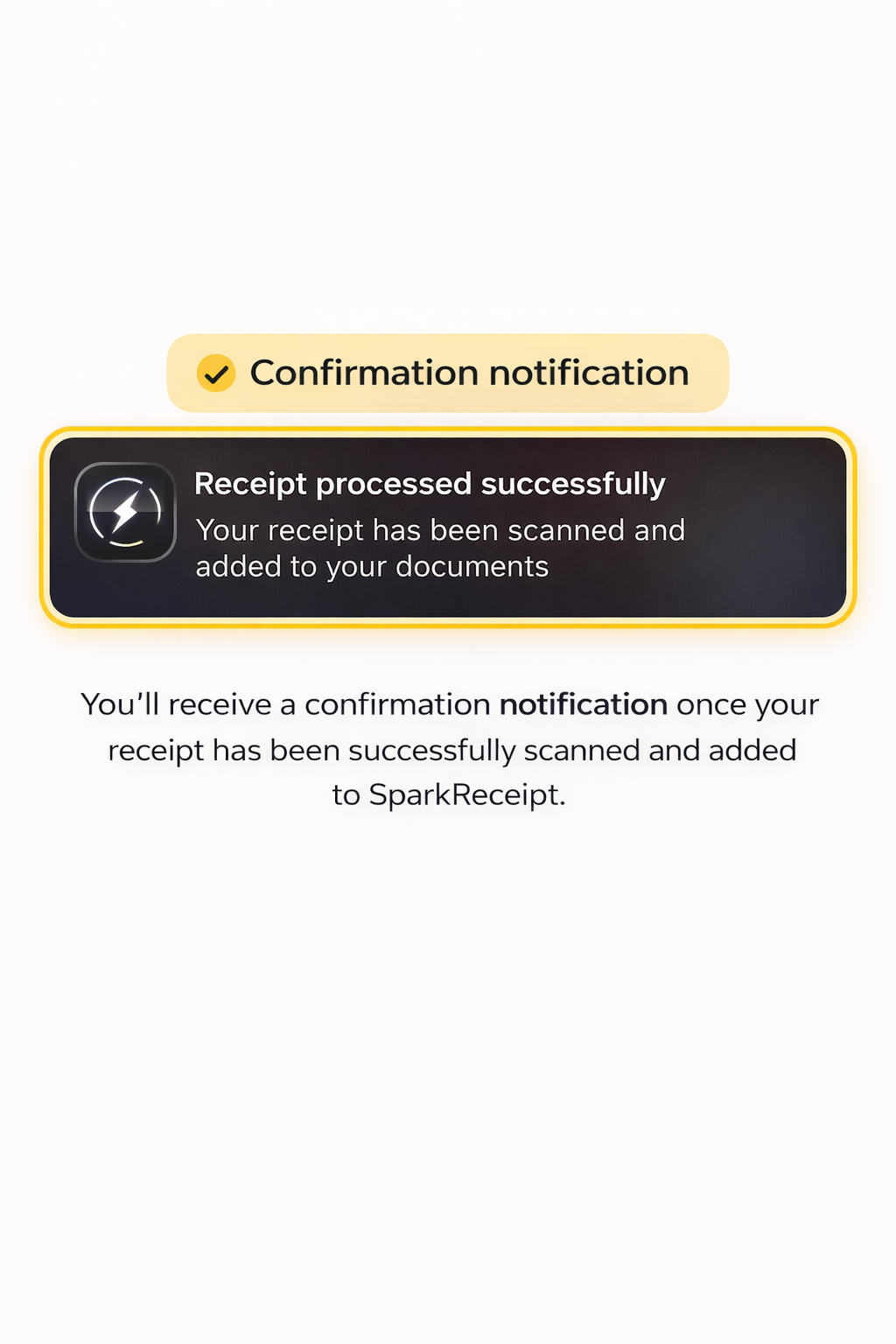
A forwarded email is normally scanned within 10–20 seconds, and you get a confirmation email and a push notification when it has been added. SparkReceipt reads the merchant, total, tax, currency, date and the other standard receipt fields.
One email becomes one document
SparkReceipt turns each forwarded email into one document. If an email carries several invoices as separate attachments, they all end up as files on that single document. SparkReceipt doesn't split them into separate documents, and it only reads the first three attachments of an email.
To get each invoice as its own document:
- Forward each invoice in a separate email, one attachment per email.
- Or save the attachments and upload them in the web app with Add documents. When you add several files there, choose Create N separate … so each file becomes its own document. For many files, use mass upload.
The same applies to a PDF that contains several receipts. See Can SparkReceipt extract multiple receipts from a single PDF file?
Can I upload an .eml email file?
No. .eml files (saved email messages) can't be uploaded in the web app, the mobile app or by email. An .eml attached to a forwarded email is skipped too. Forward the original email to your SparkReceipt address instead, or save the receipt inside it as a PDF and upload that. See File format and max file size for upload for the formats that work.
What date does a forwarded receipt get?
SparkReceipt uses the date printed on the receipt. If it can't read a date there, it uses the date the email was sent and adds a note to the document: "We couldn't read a date on this document, so we used the date the email was sent. If that's not right, set the correct date."
When you forward a receipt by hand, the email that reaches SparkReceipt is your forward, so its sent date is the day you forwarded it. For receipts where the date is missing from the receipt itself, check the date after import. Receipts imported by automatic email scanning use the date the original email was sent.
Documents you upload as files don't have an email date. When no date can be read from them, SparkReceipt uses today's date and shows a Check the date notice on the document. Fix the date, or click Date is correct if today is right.
4. Automate it with forwarding rules in your email client
You can set up auto-forwarding rules in your email client that send matching messages to your SparkReceipt address. This works on every plan. Always use a filter, or you'll forward your whole inbox. A good filter combines a specific sender address (for example billing@merchant.com) with a subject contains condition (for example "Your receipt" or "Invoice").
- Gmail / Google Workspace: create a filter that forwards matching mail. If you already use a filter to label your receipts, add forwarding to that same filter, so only that label's mail goes to SparkReceipt.
- Outlook (Microsoft Outlook / Exchange): create a rule that forwards mail from specific senders, ideally combined with a subject condition.
- Apple Mail (iCloud Mail): create the rule in Mail Rules on iCloud.com. Rules made in the Mail app on your Mac or iPhone don't forward on the server.
- ProtonMail: use custom filters. Auto-forwarding needs a paid ProtonMail plan.
- Yahoo Mail: create filters that forward mail from specific merchants.
- Zoho Mail and email aliases: there is no alias setting in SparkReceipt. Set up forwarding in the mailbox your aliases deliver into. SparkReceipt doesn't care which alias a receipt was first sent to, only that it reaches your SparkReceipt address.
Some providers send a verification email before they start forwarding. It arrives at your SparkReceipt address and shows up in Documents. Open it and follow the provider's instructions.
5. Can I set a category or tags from a forwarded email?
No. There is no note, keyword, hashtag or syntax you can write in a forwarded email to set its Category, Tags, Merchant or any other field. The email body is read as part of the document, the same way a photographed receipt is read, and the subject is only used to spot duplicates. Writing "category: Travel" or "#billable" in the message does nothing.
The one thing you can choose is the document type, and you choose it with the address you forward to.
Set the document type with an address flag
Add a flag after a + in your personal address, and everything forwarded to that variant is filed as that type:
| Forward to | Files the document as |
|---|---|
yourname+expense@to.sparkreceipt.com | Expense |
yourname+income@to.sparkreceipt.com | Income |
yourname+bank-statement@to.sparkreceipt.com | Statement |
yourname+document@to.sparkreceipt.com | Other document |
The web app lists these ready-made addresses on the same settings page, under Always send to a specific category. The flag must be in the recipient address. It does nothing in the subject or body, and a misspelled flag is ignored. Without a flag, SparkReceipt decides the type itself.
The flag sets the document type only. It doesn't set the Category, Tags, AI Fields, or the Merchant or Payer.
Setting the other fields
- Open the document after it arrives and set the Category, Tags or Merchant by hand. To change many documents at once, select them in Documents, open Actions and use Set category or Assign tags.
- For rule-based routing, connect the mailbox with automatic email scanning. Connected mailboxes support AI Processing Rules and Sender Rules, which forwarded emails don't use. See AI Processing Rules and Sender Rules.
Forwarded a receipt but it's not in Documents?
Work through these checks in order. Most missing forwards come down to the address, a duplicate, or an email with nothing scannable in it.
1. Check the exact address. Open your address again in Settings → Scan receipts from email (web) or Scan from email (mobile) and compare it character by character. If the address is wrong, the email never reaches SparkReceipt and you get no confirmation or error. Also check you used the address of the account you're looking in, since each linked account has its own.
2. Wait a few minutes and look for the confirmation. A successful forward usually shows up within 10–20 seconds, and the confirmation email and push notification tell you it worked. At busy times it can take a little longer.
3. Check for a duplicate notice. SparkReceipt won't create a second copy of an email it has already imported into the same account, whether you forwarded it before or a connected mailbox picked it up. You get a "Duplicate email forwarded to SparkReceipt" email instead. Search Documents for the original.
4. Check that the email had something to scan. Logos, icons, signature images and tracking pixels are ignored, and .zip, .svg and .eml attachments are skipped. Attach the receipt as a PDF or a normal image.
5. Check for an error email. If your account has no scans or credits left, you get a "Free document quota depleted for the account" email and the receipt isn't added. If your plan has ended and the account is read-only, you get "Your SparkReceipt plan has ended". Other problems send "There was an error with your receipt delivery to SparkReceipt" with the reason. If you have Accountant access to the account, you may be limited to emailing Statements, and a notification tells you so.
6. Look in Documents even without a confirmation. Confirmation emails stop after a large number of forwards in one day, and you may have turned the notification off. The document can be there anyway.
AI Processing Rules and Sender Rules never apply to forwarded emails, so they're never the reason a forward is missing.
Still missing? If the address is right, it isn't a duplicate, you have scans left and the email had a receipt in it, but nothing appeared after a few minutes and no email came back, contact support. Include the time you forwarded it, the exact address you sent it to, and the sender and subject of the original email so we can trace it.
Related articles
- Automatic email scanning: connect Gmail, Microsoft or IMAP and skip forwarding rules.
- Email history extraction: import receipts already in a connected mailbox.
- AI Processing Rules and Sender Rules: routing rules for connected mailboxes.